How to Make an AI Hair Dye Video from a Selfie
A practical guide to portrait selection, burgundy hair color, brush-on scenes and the limits of AI hair dye videos.
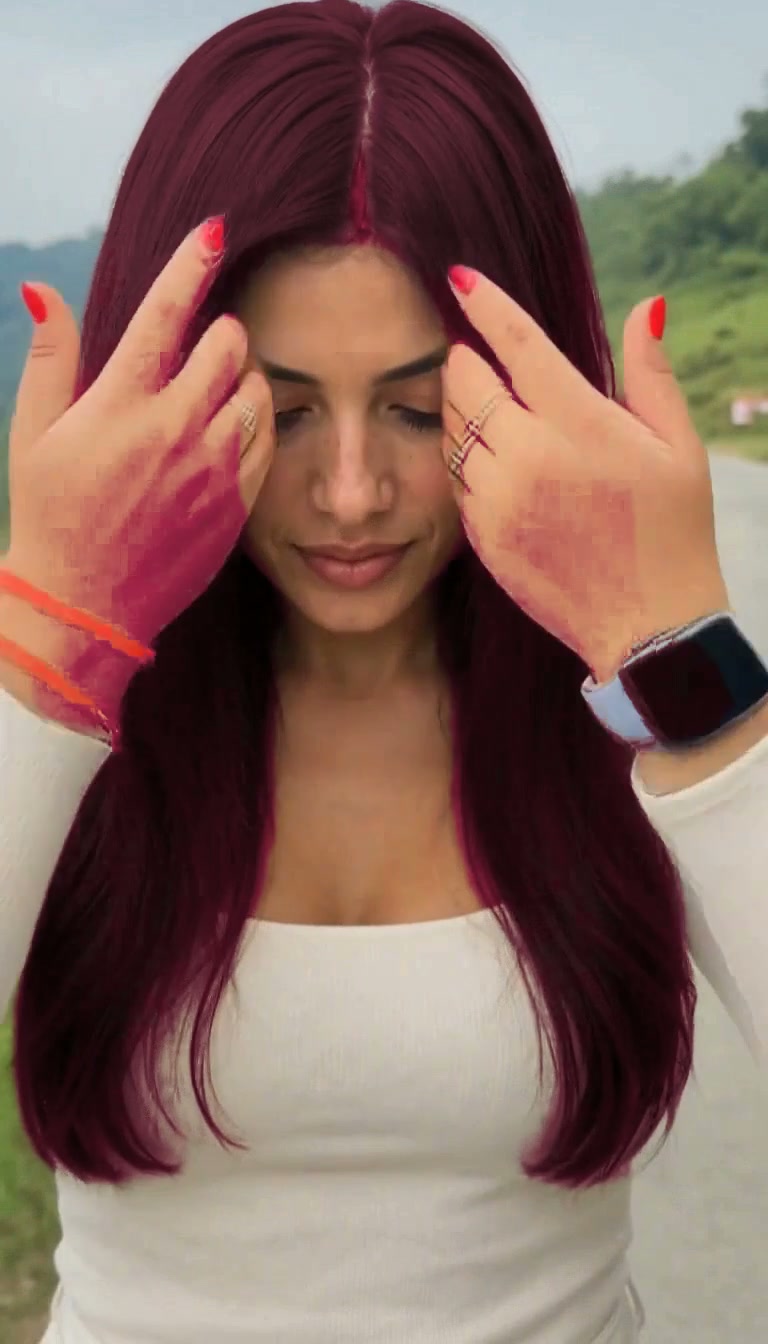
An AI hair dye video tells a short transformation story: a brush applies color, a cut reveals the finished straight hair, then styling and waves complete the look. It is different from a static virtual hair-color try-on, which changes a single image.
Open the Hair Dye Filter AI studio to upload your portrait and select a shade.
How to use Hair Dye Filter AI, step by step
1. Sign in and choose your credit pack
Open the studio and select Sign in. Choose Sign in with Google on the sign-in page, select your Google account and return to the studio; email sign-in is also available. Use your own account so your finished video and credit history remain together. Before generating, review the one-time packs: Starter is $9.90 for 2,000 credits (one video), Creator is $24.90 for 8,000 credits (four videos), and Studio is $49.90 for 20,000 credits (ten videos). Each video uses 2,000 credits; there is no free generation or automatic renewal. Credits are valid for 365 days. For billing questions, contact support@aihaircolorchange.com.
2. Upload and check your portrait
Select Start with a selfie, or drop your photo into the upload area. Choose a supported file up to 10 MB. The browser prepares a vertical crop; look at the preview and make sure your face, hair and shoulders remain visible. Select Change photo if the crop cuts off too much hair.
3. Confirm the burgundy style
The studio currently offers burgundy. This matches the licensed motion reference used for the brush-on dye, straight-hair reveal, flat-iron styling and final waves. The output is an AI interpretation, not a real dye formula or a guaranteed match to a physical hair color.
4. Generate once and follow the progress
Select Make my hair video. The service checks your account credits and starts one task. You do not need to write a prompt or manually edit the separate scenes. The progress display covers recasting and hair-color finishing; it can take several minutes and is not an exact time estimate.
If the page loses its connection, use Check progress again. Returning to the same browser can restore the saved task. Check the existing task before starting another generation: another click that creates a new task uses another video's credits. A confirmed failed task returns its credits; a temporary network error does not automatically mean generation failed.
5. Preview the complete story and download it
When the video is ready, play it and inspect the face, hands, brush, hair roots and final color. Select Download video to save the MP4. Finished videos are also available in My videos while the stored provider output remains available. Save a local copy of a result you want to keep; this service does not promise permanent hosting.
The video is approximately 11 seconds and vertical. Its soundtrack comes from our licensed motion reference, not AI audio. You may replace it with your own licensed sound in an editing app. Crop or caption it for your chosen social platform, disclose AI generation where required, and avoid presenting a synthetic transformation as a real treatment result.
How the video is made
The service uses one licensed 11-second motion reference. Recast replaces the person in that reference with the person in your portrait while trying to preserve the original timing, cuts, props and gestures. A separate hair-segmentation step then adjusts the visible hair toward burgundy, especially after the straight-hair reveal. The original licensed soundtrack is added after color finishing. These steps can make mistakes: identity, hands, tools, individual strands and the transitions may still vary from the reference.
| Approximate time | Action | | --- | --- | | 0–3 seconds | Apply dye with brush and bowl | | 3–4.5 seconds | Reveal long, straight burgundy hair | | 4.5–6.5 seconds | Style with a flat iron | | 6.5–8.5 seconds | Reveal soft waves | | 8.5–11 seconds | Finish with a small head turn and smile |
Where your photo goes
The browser first prepares the crop. Your portrait is uploaded to fal.ai for video processing. The task temporarily stores a link to that working portrait until Recast is submitted, then removes the link from the active task record. A task interrupted before submission may retain the link until the task is resumed or handled by support. Provider storage and retention rules also apply. Read the Privacy Policy before uploading, and use only portraits you are authorized to use.
If the result looks wrong
If hair is cut off, replace the photo with a wider portrait. If the face drifts, start from a clearer front-facing photo without a beauty filter. If hands or tools look unnatural, do not post the clip as a real procedure. A new generation is a separate paid attempt and cannot guarantee correction. For an unresolved technical delivery issue, send your task or order number to support and review the refund policy.